TL;DR
- Generate more prompts on the Prompts page: Visibly AI writes new questions from your current prompts and their results.
- Review before adding: edit, untick or remove suggestions, then add the rest. They run straight away, with no credits used.
- Add your own with Add prompt, and choose which AI assistants to track it on.
- Click any prompt to see your mention rate, competitors and the websites AI answers cite.
Prompts are the questions shoppers ask ChatGPT and Gemini. Visibly AI runs each prompt you track and records whether the answers mention your brand, which competitors appear and which websites they cite. This guide shows how to let Visibly AI write new prompts for you, add your own, and read the results.
Generate prompts with AI
Visibly AI reads your current prompts and how AI answers them, then writes new questions worth tracking: related questions shoppers ask, other ways to ask questions where you're already mentioned, and questions where you're not mentioned yet.
- Open Prompts in the sidebar and click Generate more prompts.
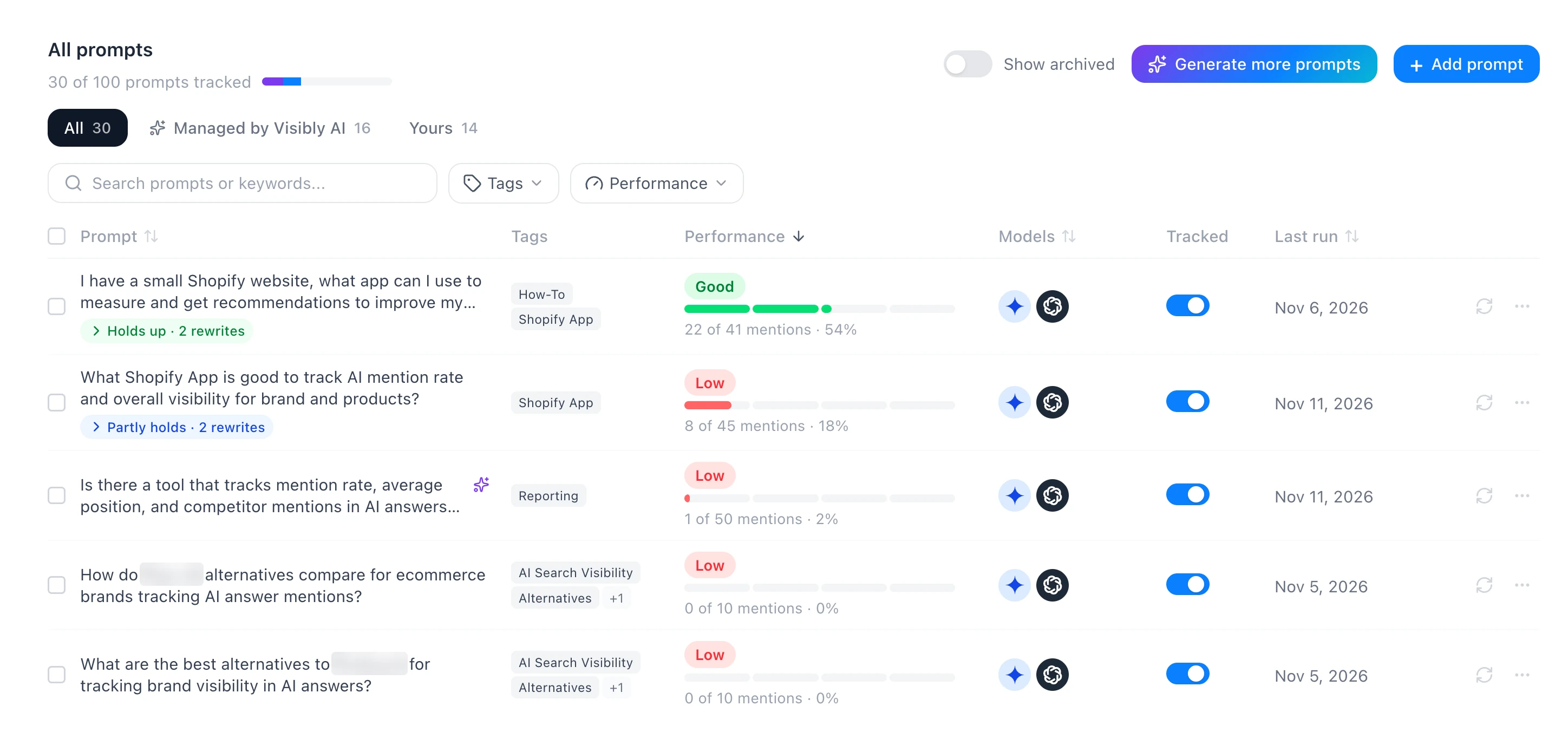
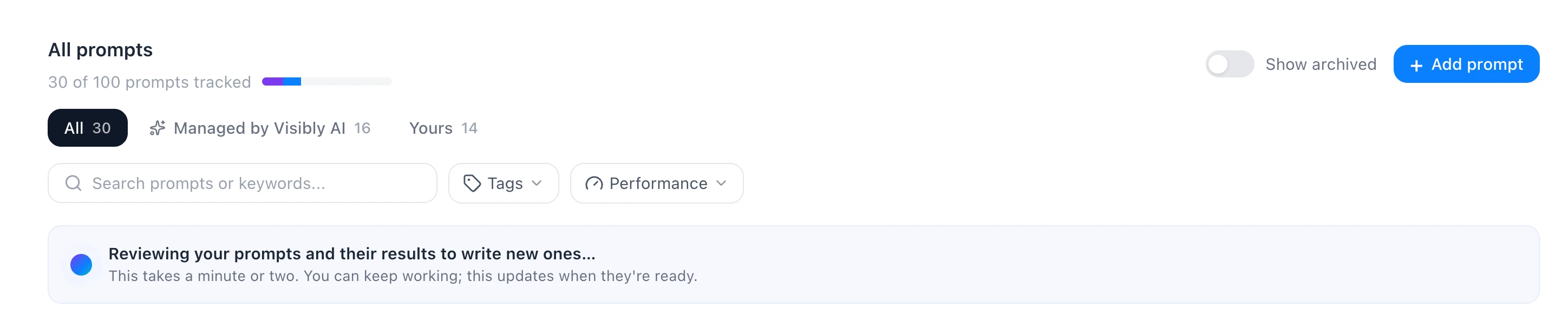
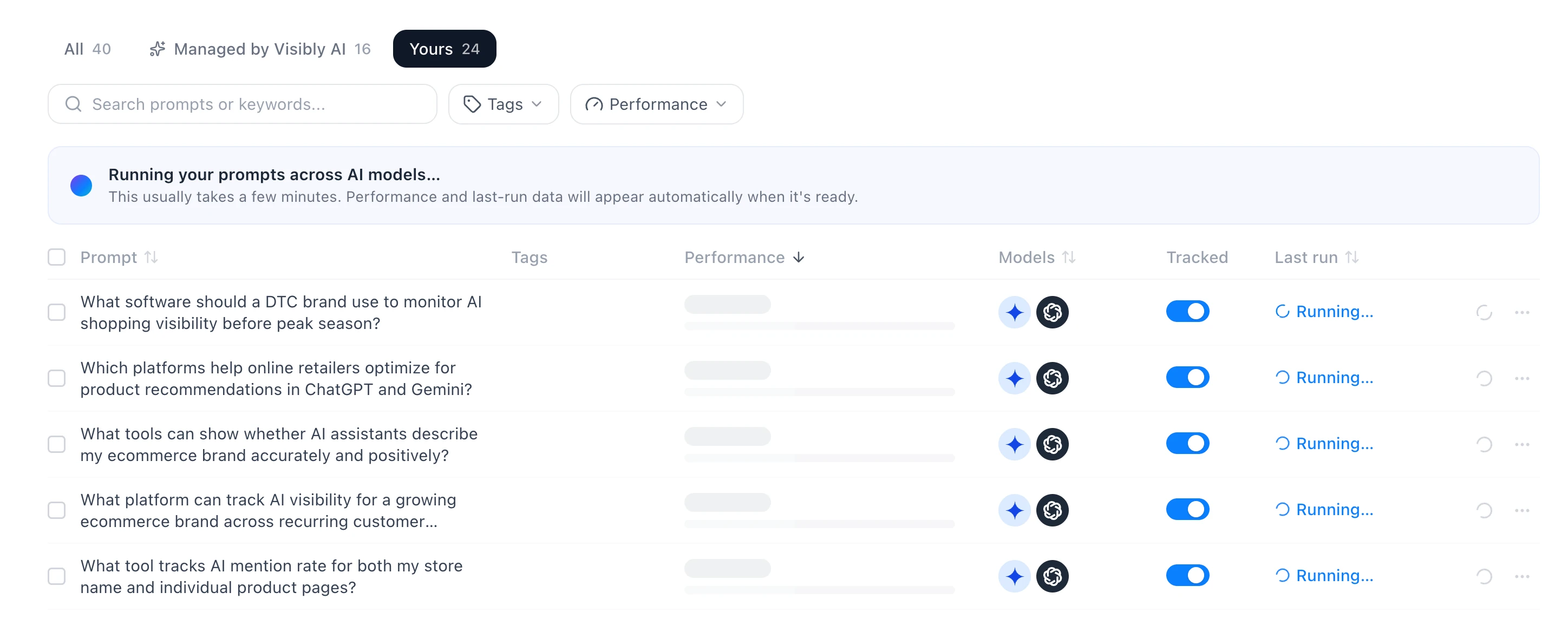
- Visibly AI starts writing. It takes a minute or two, and you can keep working in the meantime.
- When the bar says your new prompts are ready, click Review prompts.

- Edit the wording of any prompt, untick or remove the ones you don't want, then click Add prompts and run.
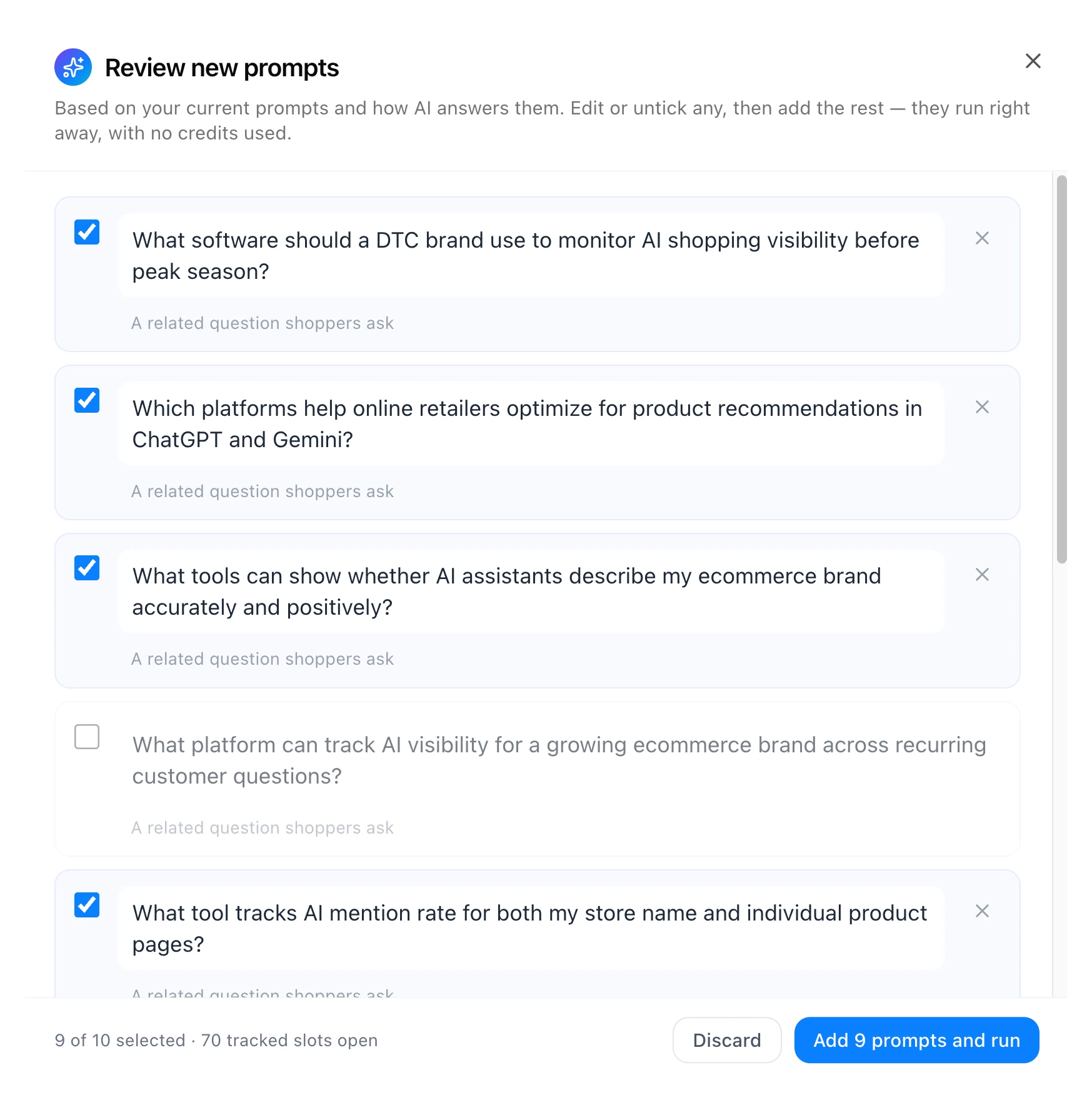
The new prompts appear under Yours and start running straight away, with no credits used. Their first results usually arrive within a few minutes.
Not ready to decide? Close the window: your suggestions wait on the Prompts page for 7 days. Discard deletes them without adding anything.
Generate more prompts is available on paid plans once your prompts have results and you're tracking fewer prompts than your plan allows. Compare plans on the pricing page.
Prompts Visibly AI manages for you
After your first results, Visibly AI adds prompts that show where your brand can be found. They're marked with a sparkle labelled Managed by Visibly AI, and you can filter the list to see only them. If AI answers don't mention you yet, Visibly AI researches your niche to find the questions your shoppers ask.
The summary above your prompts explains in one paragraph how AI assistants see your brand. It updates after each full refresh.
Add your own prompt
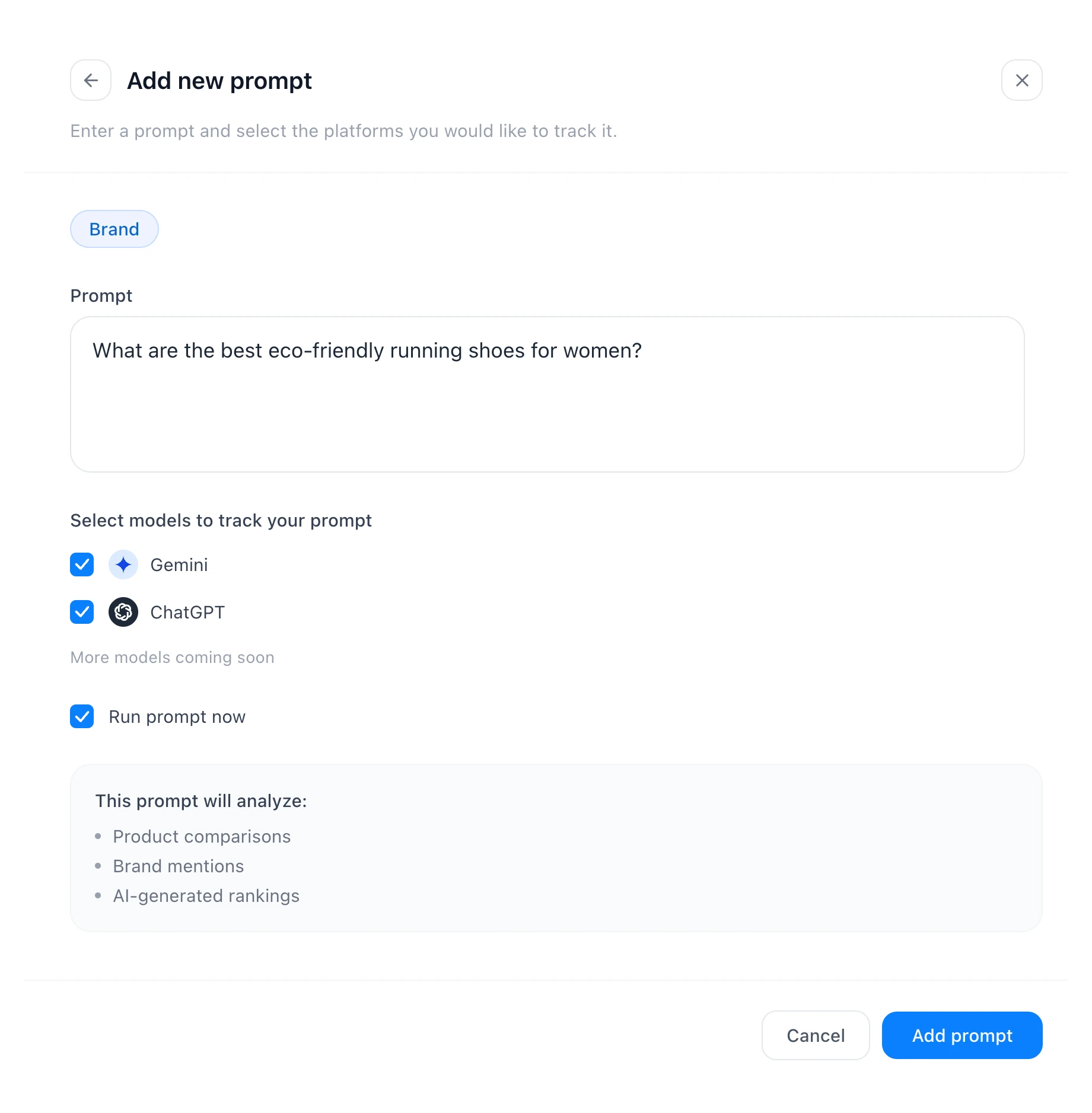
- Click Add prompt.
- Write the question the way a shopper would ask it, for example “What are the best eco-friendly running shoes for women?”
- Choose the AI assistants to track it on.
- Leave Run prompt now ticked to get results straight away. This uses credits. Untick it to wait for your next automatic refresh.
- Click Add prompt.
Track your results
Each row on the Prompts page shows how often AI answers mention your brand for that prompt, for example “22 of 41 mentions”, plus the AI assistants it runs on and when it last ran. Use the date range at the top to change the period, and the Tags and Performance filters to narrow the list. Export downloads all your prompts.
Click a prompt to open its results:
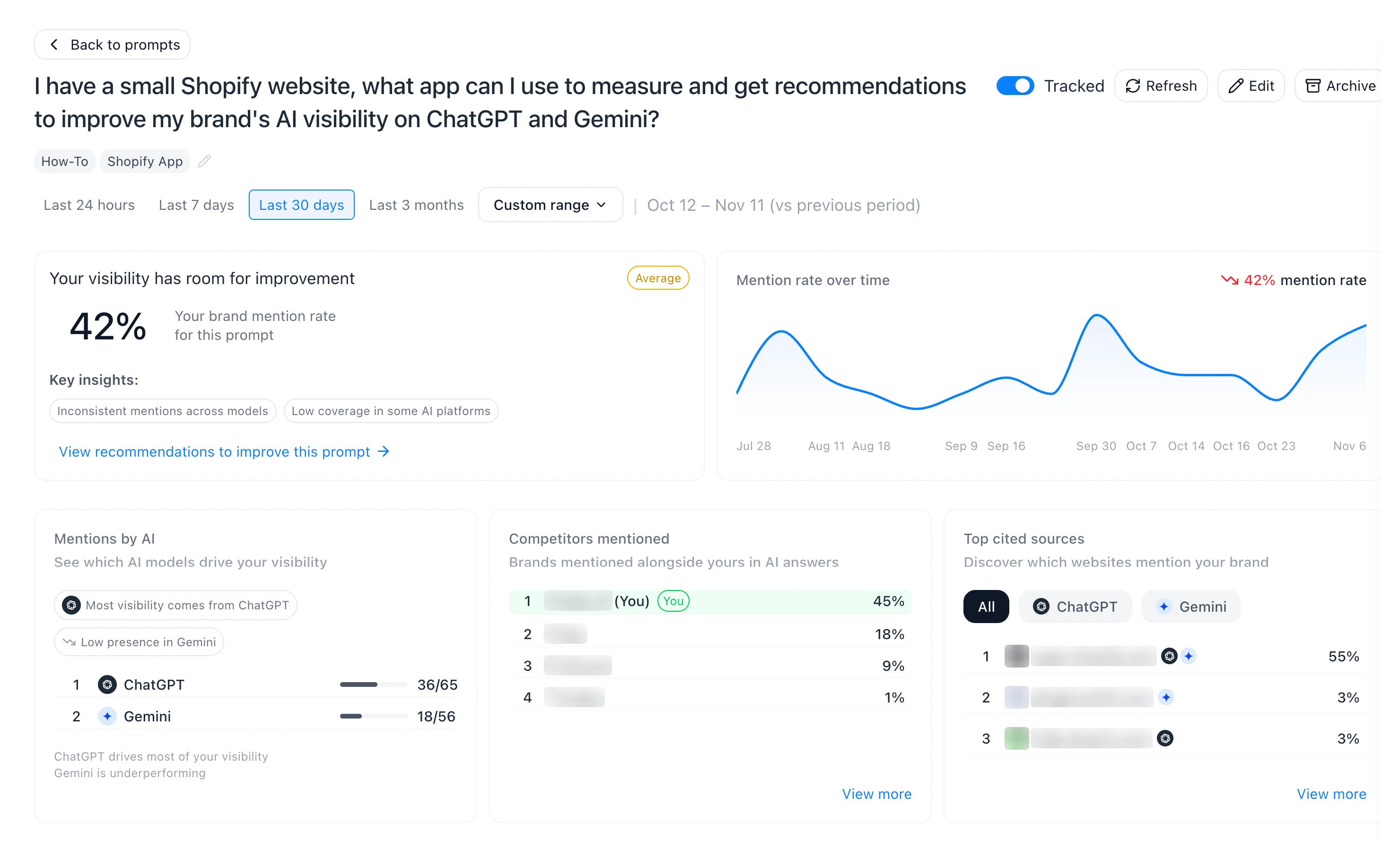
- Mention rate: the share of AI answers that mention your brand, and how it changes over time.
- Mentions by AI: which assistant mentions you most, and which one is underperforming.
- Competitors mentioned: the brands that appear alongside yours.
- Top cited sources: the websites AI answers rely on. Getting mentioned on them helps you appear in more answers.
- All answers, further down: every answer in full.
Paid plans re-run your prompts automatically. Click Refresh to run a prompt now, which uses credits. To improve a prompt where you're rarely mentioned, click View recommendations to improve this prompt.
Edit and organise prompts
- Edit a prompt. Open it and click Edit to change its wording or the AI assistants it runs on. Your edit is saved as a new version: the earlier version is archived with its results, so you don't lose history.
- Act on several prompts at once. Use the menu on any row, or select several prompts, to refresh, archive, unarchive or delete them.
- Archived prompts stop running. Unarchive one to track it again.