
TL;DR
- Connect in Settings → Integrations: sign in with Google, allow read-only access to Google Analytics, then choose your GA4 property.
- Tick the Google Analytics box on Google's permission screen, or we can't see your properties.
- We import the last 90 days straight away, then update your data daily.
- The Analytics page shows AI-referred sessions, their share of all your traffic and, if you track purchases in Google Analytics, sales from AI.
Connect Google Analytics to see the traffic AI assistants send to your website. Visibly AI reads your Google Analytics 4 data and shows, on the Analytics page, how many visits come from ChatGPT, Gemini, Perplexity and other assistants, how that compares with your total traffic and, if you track purchases, how much those visits sell.
Access is read-only: Visibly AI never changes anything in your Google Analytics account.
Before you start
- Your website needs a Google Analytics 4 property. Older Universal Analytics properties aren't supported.
- You need a Google account with at least Viewer access to that property.
- Google Analytics is available on every plan, including Free.
Connect Google Analytics
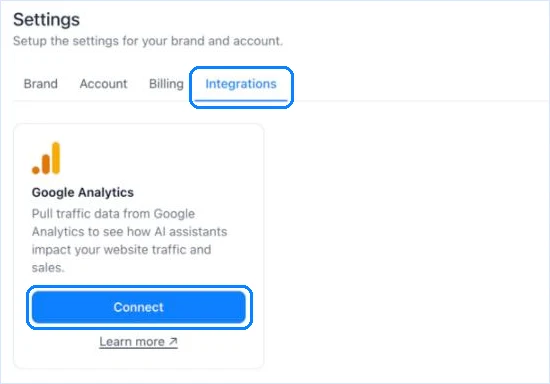
- Go to Settings → Integrations and click Connect on the Google Analytics card.
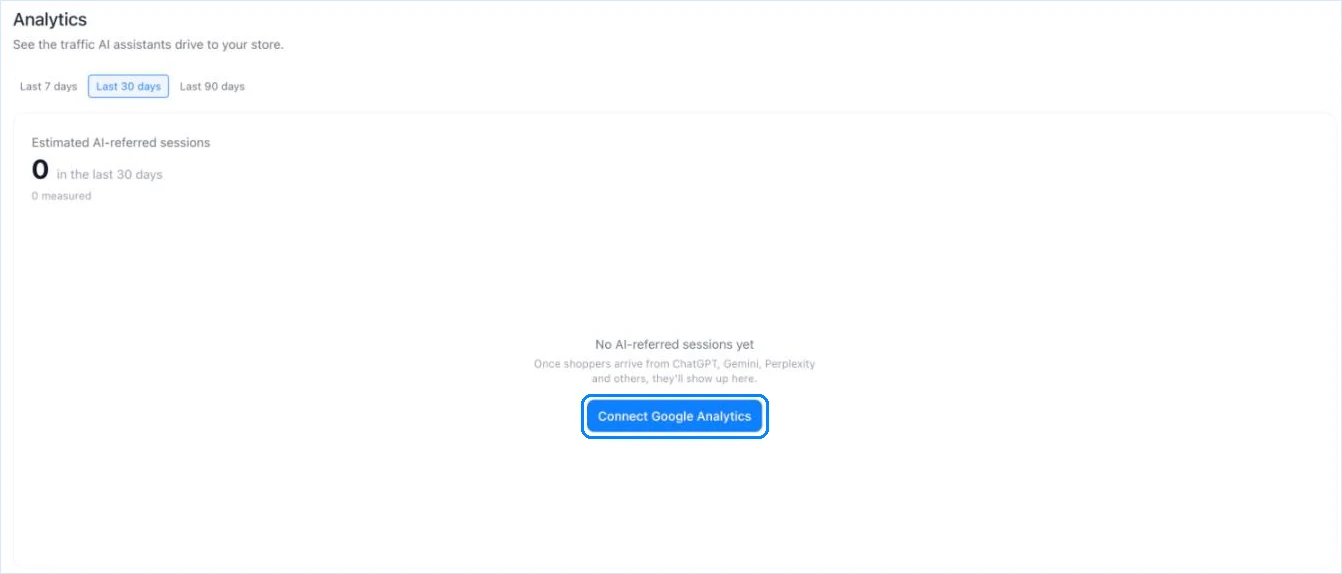
You can also start from the Analytics page: until Google Analytics is connected, it shows a Connect Google Analytics button.
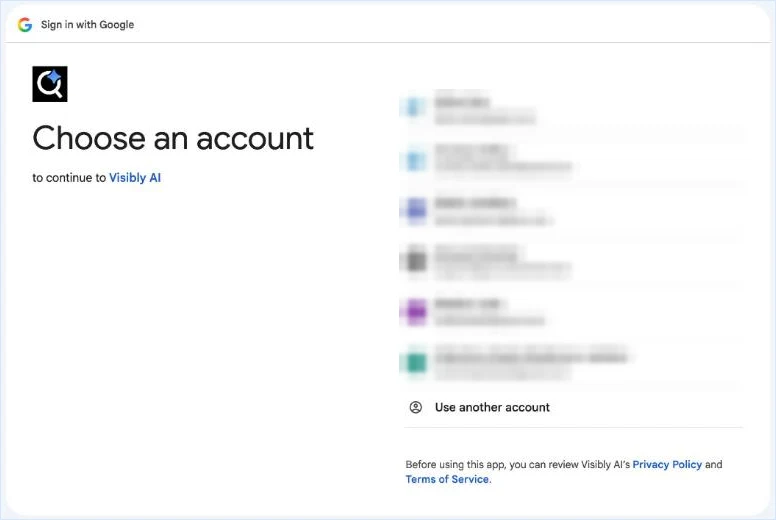
- Google asks you to sign in. Choose the Google account that has access to your Google Analytics property.
- On the permission screen, tick See and download your Google Analytics data, then click Continue.
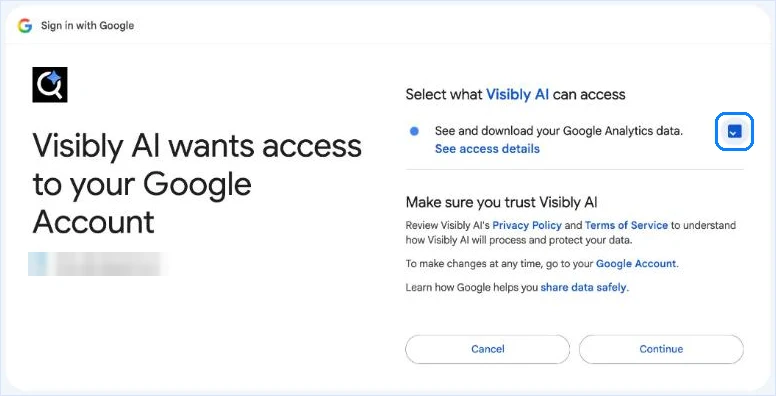
Don't skip the checkbox. If it's left unticked, Google doesn't give us access, and Visibly AI tells you the account has no Google Analytics 4 properties.
- You're taken back to Visibly AI. Choose the property for your website and click Use this property.
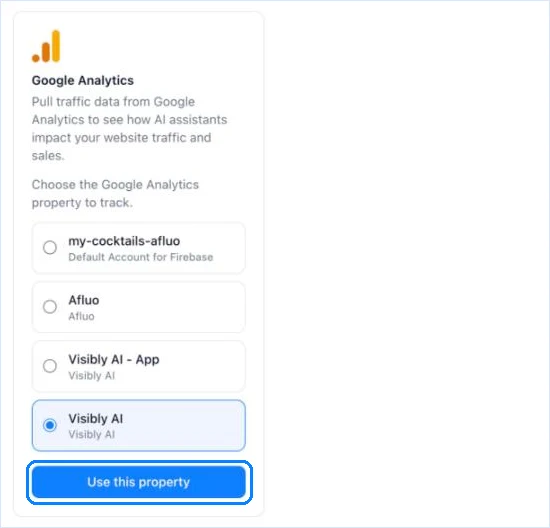
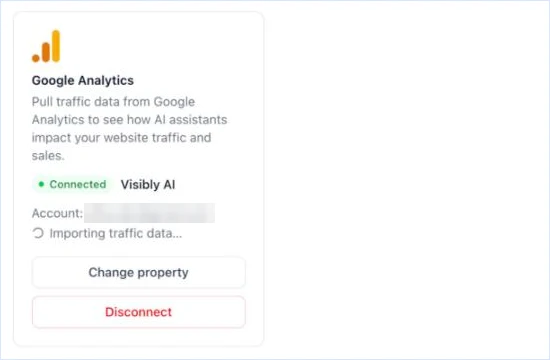
That's it. The card now shows Connected and starts importing your last 90 days of traffic. The import usually takes under a minute, and the Analytics page updates when it's done.
Using the Shopify app? Google's sign-in opens in a new browser tab, because Google doesn't allow it inside the Shopify admin. Finish there, then switch back to the Shopify tab. Visibly AI picks up the connection on its own.
Read your AI traffic
Open Analytics in the sidebar and choose the last 7, 30 or 90 days.
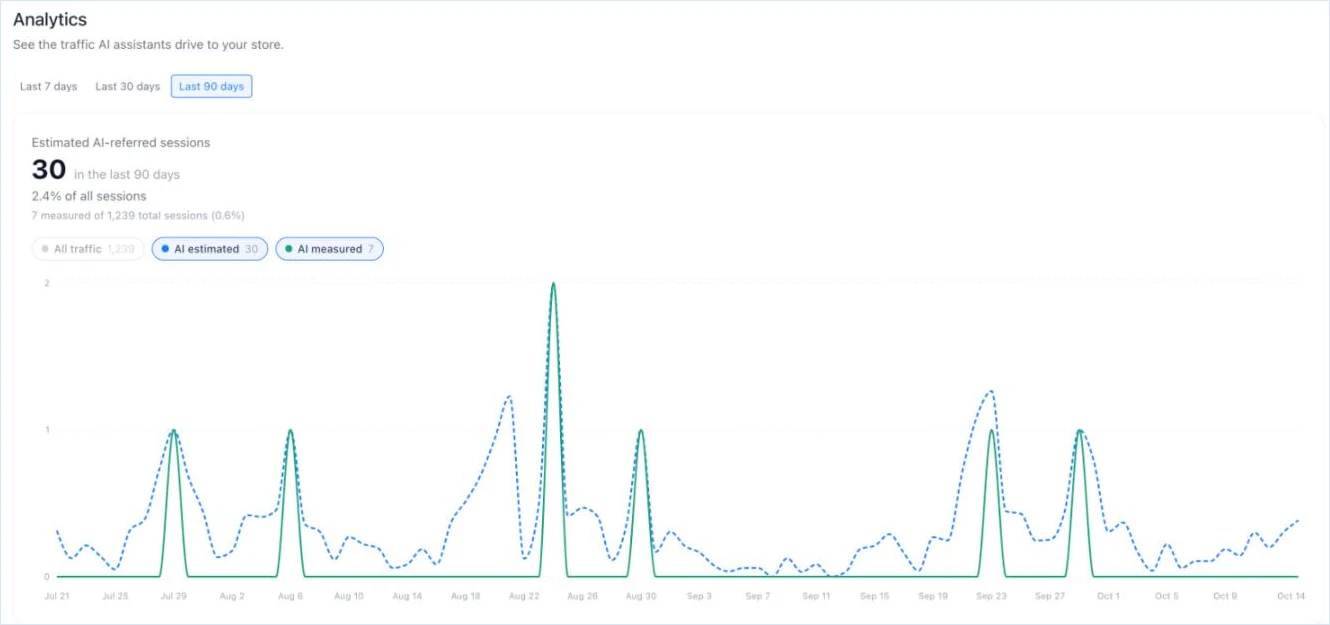
- Estimated AI-referred sessions is the headline number, with its share of all your sessions.
- AI measured counts the visits Google Analytics recorded as coming from an AI assistant: ChatGPT, Gemini, Perplexity, Claude, Copilot or Grok.
- AI estimated corrects for visits Google Analytics can't attribute. AI apps and in-app browsers often drop the referrer, so most AI-referred visits show up in Google Analytics as direct traffic. The estimate scales up your measured share of AI sessions. It's a model, not a measurement, which is why the measured figure is shown next to it.
- All traffic shows your total sessions for comparison. Click the chips above the chart to show or hide each line.
- Sales from AI appears when your Google Analytics property records purchases: the revenue and number of orders from AI-referred visits.
New data is pulled from Google Analytics once a day.
Change property or disconnect
In Settings → Integrations:
- Change property lets you pick a different Google Analytics property. We import its last 90 days.
- Disconnect stops new data from coming in. You can reconnect at any time.
You can also remove Visibly AI's access from your Google Account's Third-party apps & services page. The connection then stops working until you reconnect it.
Troubleshooting
| What you see | What to do |
|---|---|
| “The connected Google account has no Google Analytics 4 properties” | Click Reconnect. Make sure you tick the Google Analytics box on Google's permission screen, and choose an account with access to a GA4 property. |
| “Google access was denied — nothing was connected” | You clicked Cancel on Google's screen. Click Connect to try again. |
| The card asks you to reconnect, or the Analytics page warns that data stopped updating | Google access was removed or expired, for example after a password change or a change to your Google Analytics permissions. Click Reconnect in Settings → Integrations. |
| The Analytics page shows no AI-referred sessions | Your property may not have any yet. They appear as soon as shoppers start arriving from AI assistants. |
To get mentioned in more AI answers, and so get more of this traffic, work through your Recommendations. For a tour of the rest of the dashboard, see Getting started with Visibly AI.